[Chrome Extension] How to import same javascript file on different projects
![[Chrome Extension] How to import same javascript file on different projects](/assets/images/posts/thumbnails/2023-12-25-chrome-extension-javascript-files-on-different-projects.png)
This explains only on Mac environment.
When developing Chrome plugin.
each Plugin can refer only the files inside the folder.
so, If there are several project like below(sample, tabswitcher-master), I had to copy and past the utility javascript file to each project’s folder. but I would like to use same files in util folder
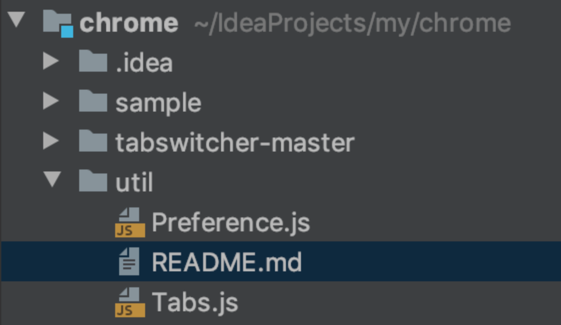
Then, how can we use just same file from several projects? I solved by hard link from Linux.
ln ./util/Preference.js ./<project-name>/util/Preference.js
ln ./util/Tabs.js ./<project-name>/util/Tabs.js
you can check the source code. If you want to know how to import javascript file. I recommend this article
Understanding Hard Links vs Symbolic Links
When sharing files across Chrome extension projects, you have two main options on Unix-based systems: hard links and symbolic links. Here is a quick comparison to understand why hard links work better for this use case.
Hard Links
A hard link creates another directory entry pointing to the same inode (the actual data on disk). Both the original file and the hard link are equal references to the same content.
# Create a hard link
ln ./util/Preference.js ./my-extension/util/Preference.js
Key characteristics:
- Changes to the file are immediately reflected in all linked locations
- If you delete one link, the other still works because the data remains
- Hard links cannot span across different file systems
- Hard links cannot be created for directories
Symbolic Links (Symlinks)
A symbolic link is a shortcut that points to the original file’s path. Chrome extensions cannot follow symlinks because they resolve paths within the extension directory.
# Create a symbolic link (does NOT work for Chrome extensions)
ln -s ./util/Preference.js ./my-extension/util/Preference.js
This is why we use hard links instead of symlinks for Chrome extension development.
Setting Up the Project Structure
Here is a recommended project structure when developing multiple Chrome extensions that share utility files:
chrome-extensions/
├── util/                    # Shared utility files (source of truth)
│   ├── Preference.js
│   ├── Tabs.js
│   └── Storage.js
├── extension-a/
│   ├── manifest.json
│   ├── popup.html
│   ├── popup.js
│   └── util/               # Hard-linked files
│       ├── Preference.js
│       └── Tabs.js
├── extension-b/
│   ├── manifest.json
│   ├── background.js
│   └── util/               # Hard-linked files
│       ├── Preference.js
│       └── Storage.js
└── link.sh                  # Script to create all hard links
Automating with a Shell Script
Manually creating hard links every time is tedious and error-prone. Create a shell script to automate this process:
#!/bin/bash
# link.sh - Create hard links for shared utility files

UTIL_DIR="./util"
PROJECTS=("extension-a" "extension-b")

for project in "${PROJECTS[@]}"; do
    mkdir -p "./$project/util"

    for file in "$UTIL_DIR"/*.js; do
        filename=$(basename "$file")
        target="./$project/util/$filename"

        # Remove existing file before creating hard link
        if [ -f "$target" ]; then
            rm "$target"
        fi

        ln "$file" "$target"
        echo "Linked $filename -> $project/util/$filename"
    done
done

echo "All hard links created successfully!"
Make it executable and run:
chmod +x link.sh
./link.sh
Important Caveats
-
Git and hard links: Git does not preserve hard links. When you clone a repository, hard links are broken and files become independent copies. You need to run the link script after cloning.
-
File replacement breaks links: Some editors save files by creating a new file and replacing the old one, which breaks the hard link. Check your editor settings to make sure it modifies files in place.
-
Verifying hard links: You can verify that two files share the same inode using the
ls -icommand:
ls -i ./util/Preference.js ./extension-a/util/Preference.js
# If both show the same inode number, the hard link is intact
- macOS-specific note: On macOS with APFS (Apple File System), hard links work as expected for files. APFS also supports directory hard links internally for Time Machine, but user-created directory hard links are not supported.
Alternative Approaches
If hard links feel fragile for your workflow, consider these alternatives:
- npm packages: Package shared utilities as a local npm module and install it in each project
- Build tools: Use webpack or a similar bundler to import shared modules at build time
- ES6 modules in manifest v3: Chrome Extension Manifest V3 supports ES6 modules natively with
"type": "module"in the manifest, making it easier to share code across content scripts and service workers
Comments